Illustrator: Apply Texture to Vector
Table of Contents

To apply a texture to a vector in Adobe Illustrator follow these steps:
Pick A Background
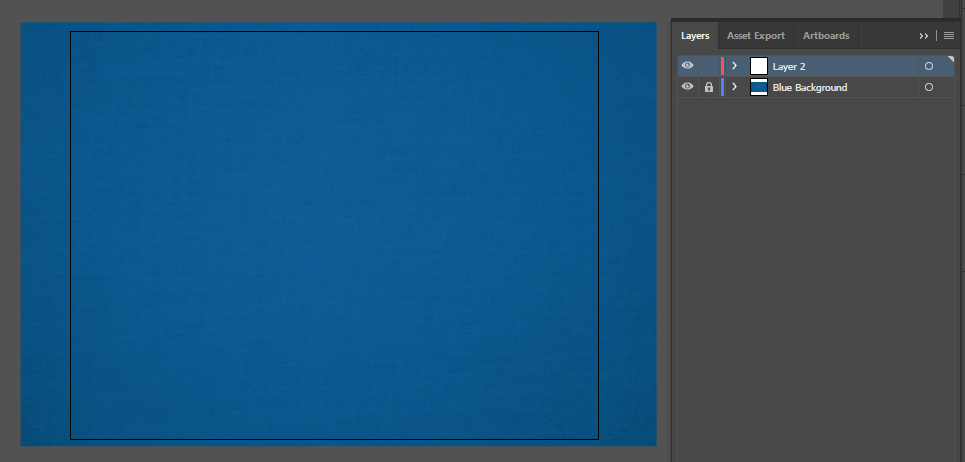
- In Adobe Illustrator, add whatever background you would like to use and then lock the layer. We won’t be touching this for the rest of the tutorial.
Make Or Import Texture
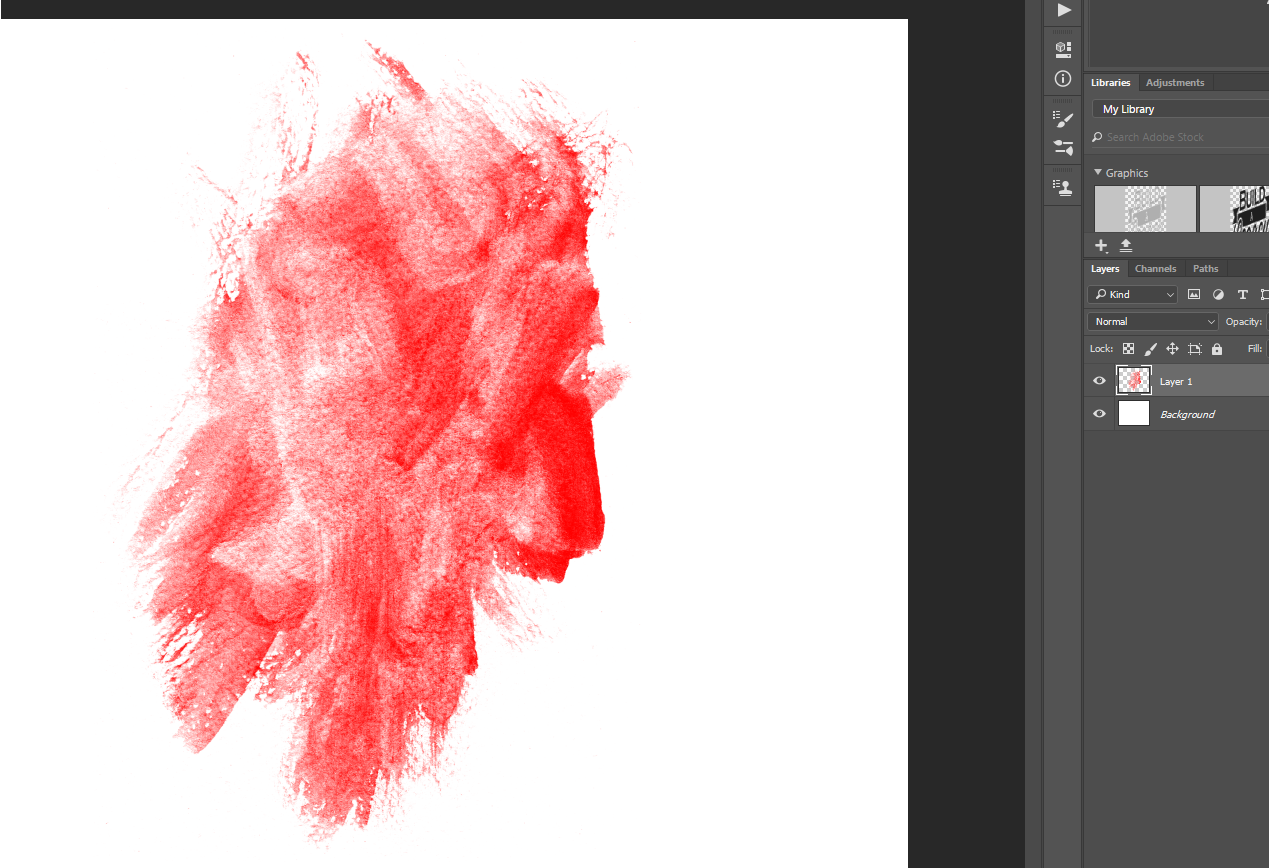
- Switch to Adobe Photoshop and paint the texture you would like onto the canvas with a brush stroke (or other method).
Turn Texture Into Transparent PNG
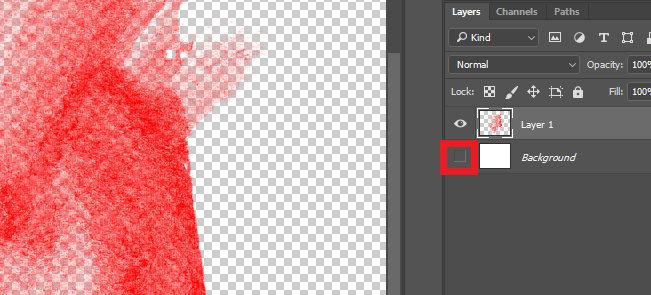
- Make sure that you disable visibility for the background layer. We are going to be exporting this texture as a transparent PNG.
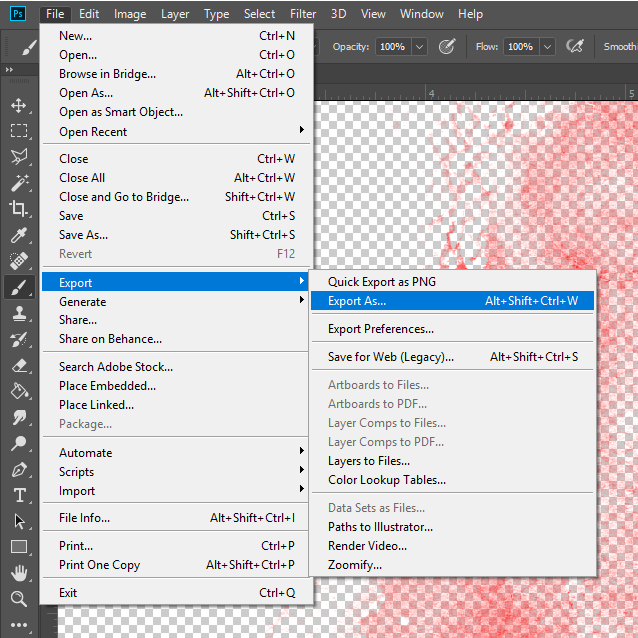
- To export the texture go to File>Export>Export As
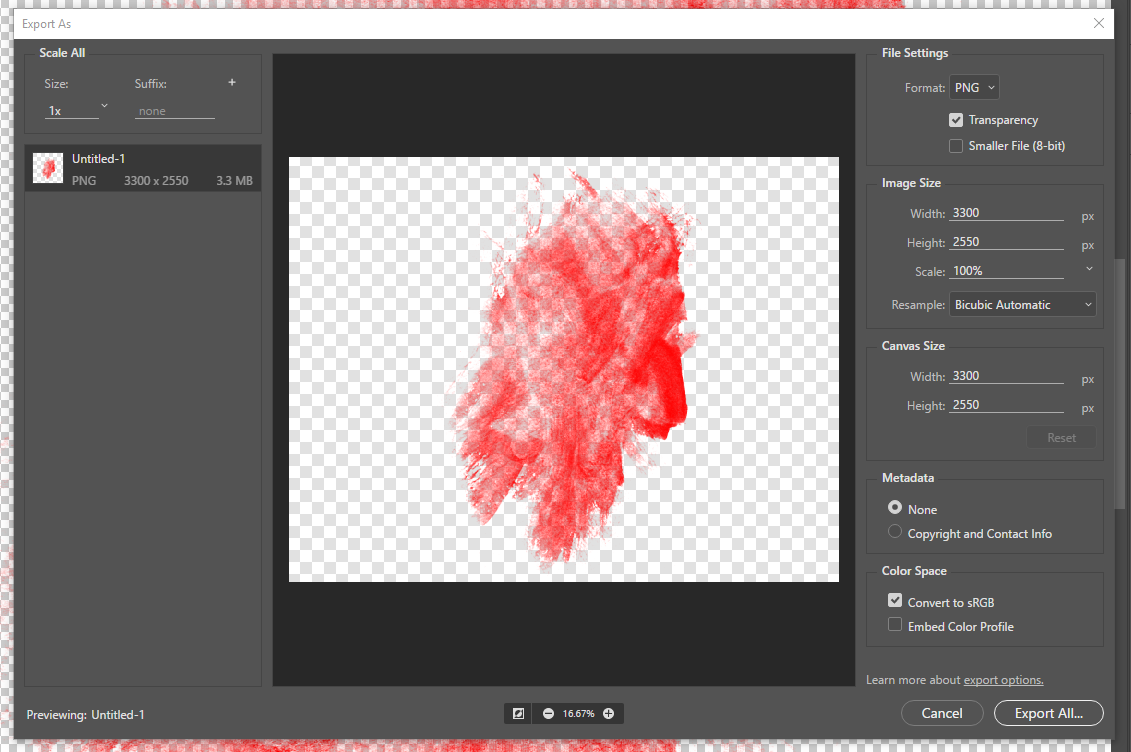
Make sure the Transparency box is ticked. Export the transparent PNG (preferably at a high resolution)
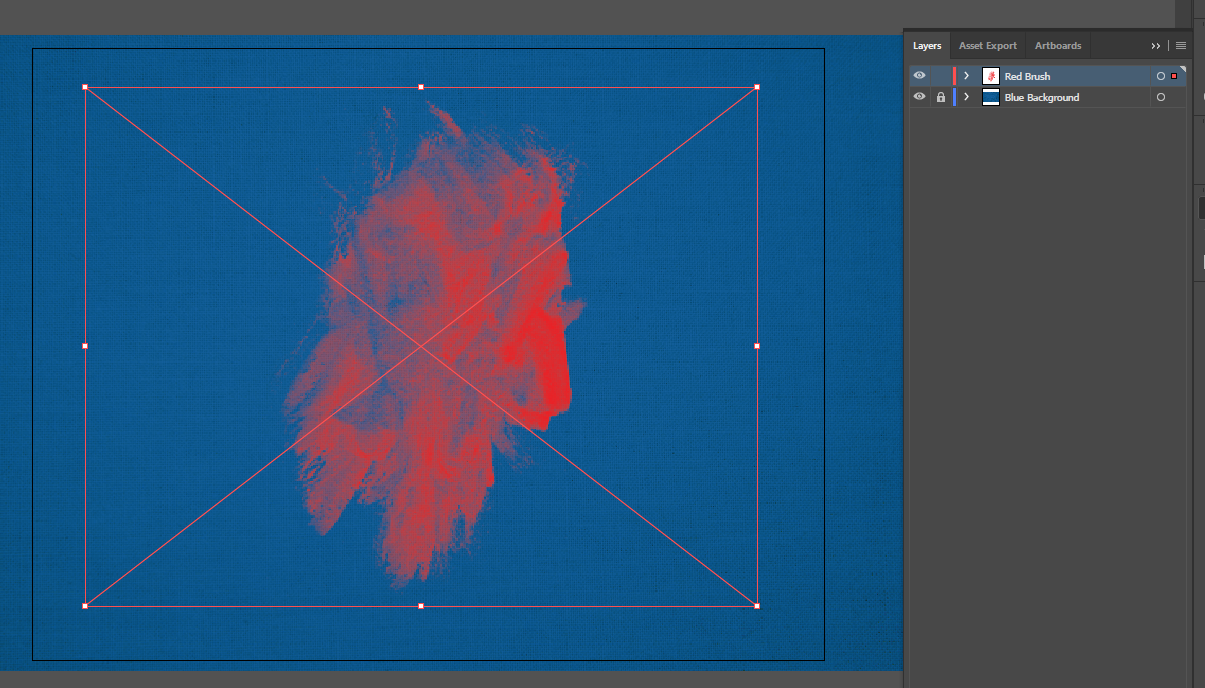
- Go back to Adobe Illustrator and add the newly exported PNG as it’s own layer.
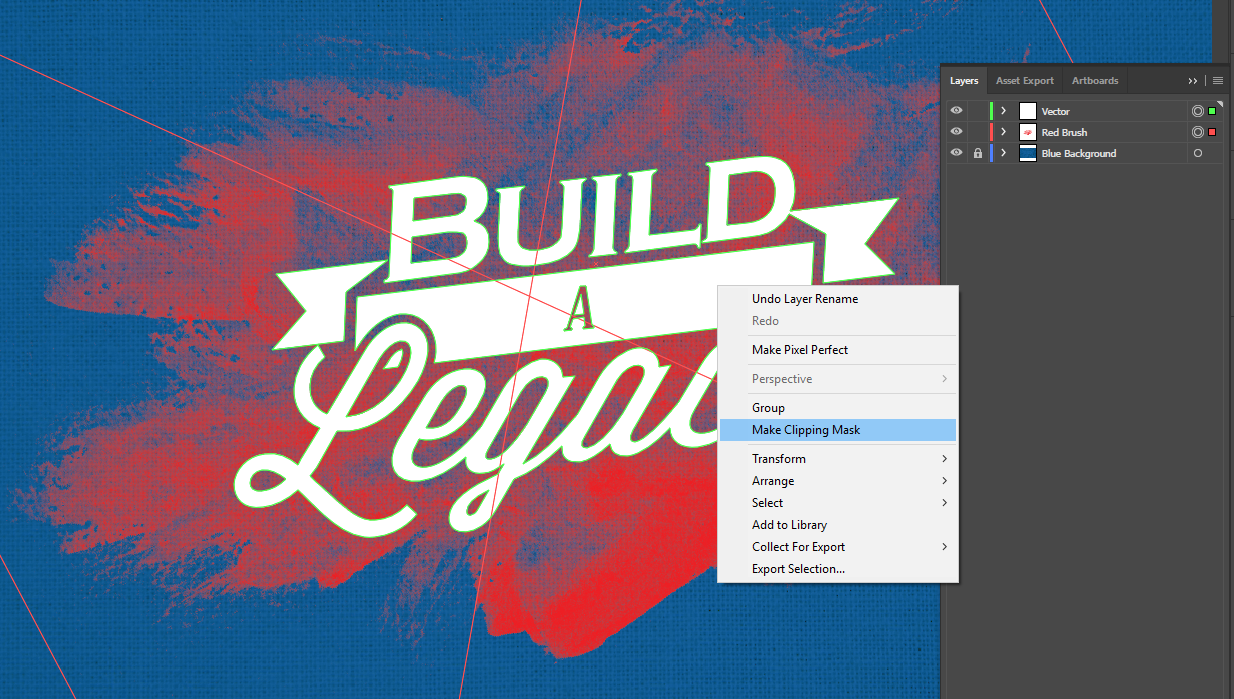
Add Vector and Make Clipping Mask
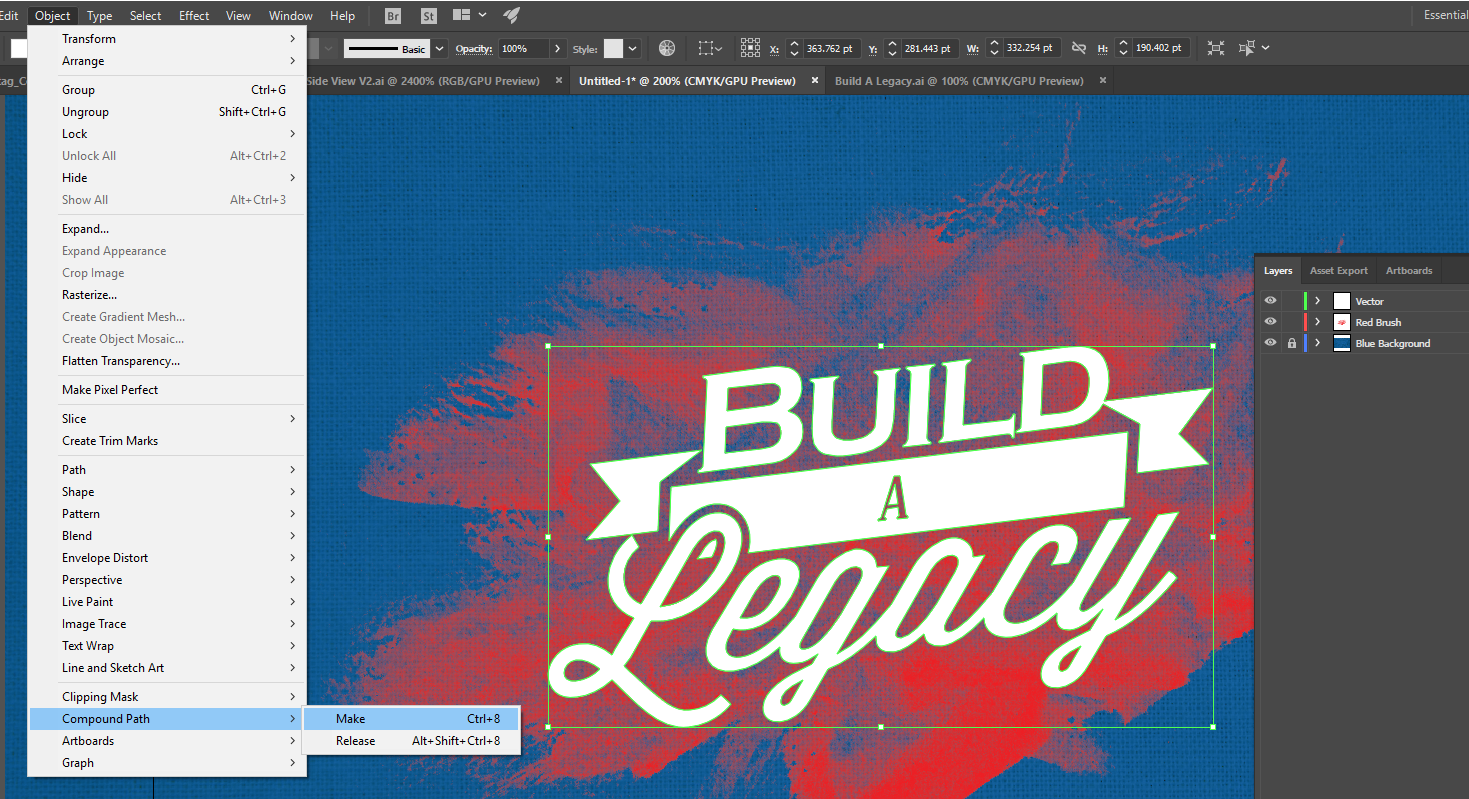
- Add your vector onto a new layer on top of the PNG. Make sure that this vector is a compound path before you continue.
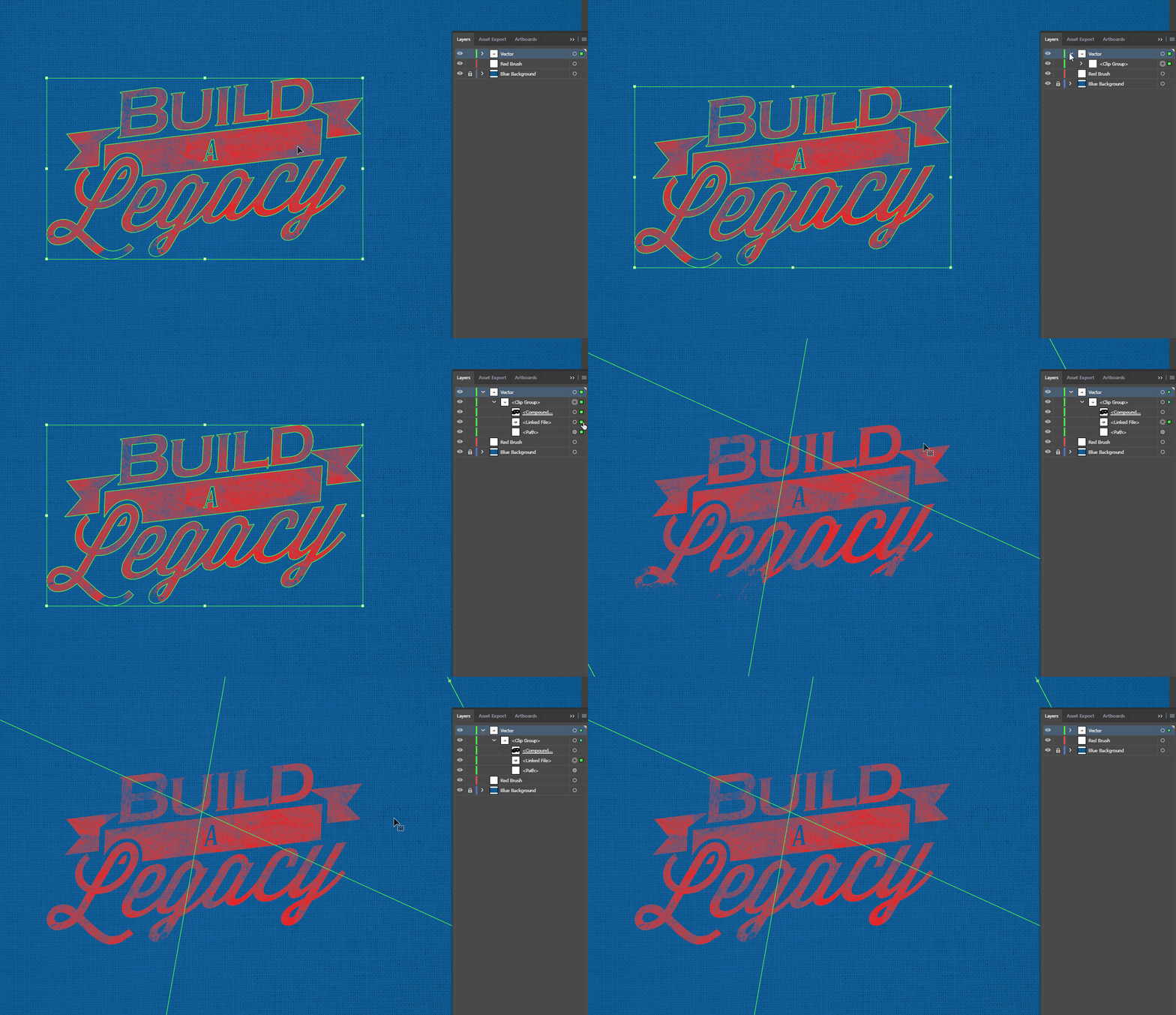
- Select the vector and the PNG (the vector MUST be on top), right click and select Make Clipping Mask.
- To adjust the position of the texture, drill down into the clip group and select it individually as shown.